


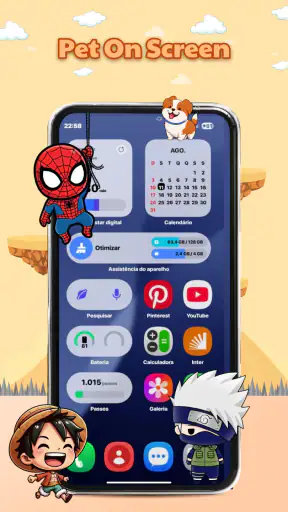
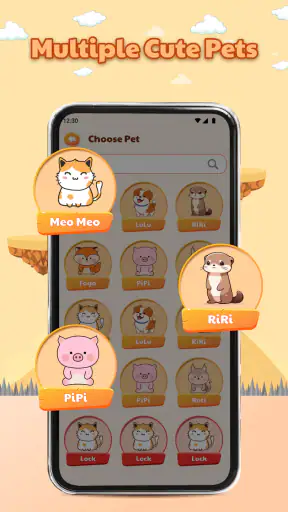
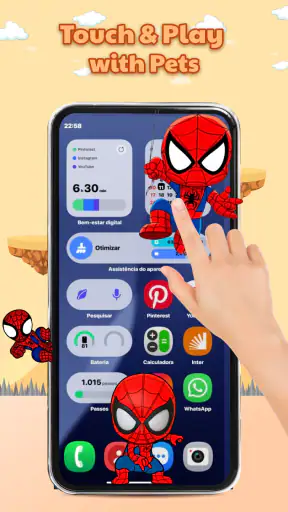
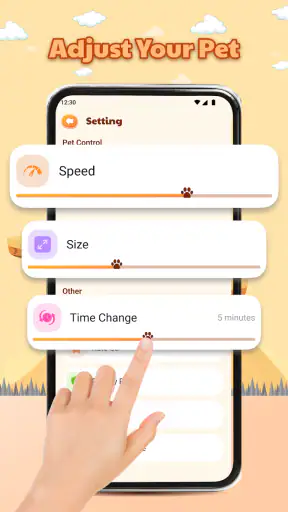
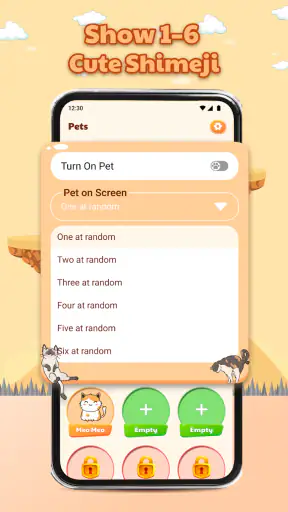
Pet On Screen - Shimeji Kawaii is the kind of personalization app I open when my phone feels a little too ordinary. Instead of changing the whole launcher or replacing my wallpaper, it adds a small animated companion that lives on top of the screen. The idea is simple: watch a cute character move around, tap it when you feel like interacting, and enjoy a softer, more playful phone experience.
I reviewed it as a first-time user, and the strongest part is how quickly the concept becomes understandable. You do not need to learn a game system or build a complicated profile. The appeal is the little interruption: while I was waiting for a page to load or taking a short break, the pet gave the screen some movement without asking for much attention. That makes it a good fit for people who want a cheerful visual touch rather than a complete redesign.
It is a free Android app in the personalization category, developed by Tokii Apps. Its audience is broad because the content rating is Everyone, and the app has already reached over one million installs with a 4.5 average from around thirteen thousand ratings. The current version is 1.0.2, and it runs on Android 7.0 or later. Those details make it approachable for many older devices as well as newer phones, although the experience will still depend on how comfortably your device handles an animated overlay.
Getting from installation to a useful first moment
What the app feels like before you customize anything
The first thing to understand is that this is not a conventional game with levels, missions, or a long progression path. It is a screen companion for casual interaction. The pet becomes part of the visual space of the phone, so the pleasure comes from its presence and motions rather than from trying to achieve a score.
That distinction matters because it sets the right expectation. If I want a game to occupy twenty minutes, I would choose something with controls, goals, and a stronger sense of progress. If I want my home screen to feel less static while I check messages or browse, this app makes more sense. It sits somewhere between a decorative widget and a tiny character toy, with more personality than a still image but less commitment than a full game.
The visual style is deliberately cute, and the short description, “Pet On Screen,” explains the central experience better than a long feature list would. The app is at its best when I treat the character as a small ambient companion. I do not need to keep staring at it. A glance is enough to notice the motion, and a quick interaction can make a routine phone check feel more pleasant.
One useful way to test it is to install it during a quiet moment rather than while rushing between tasks. The first setup is not something I would want to do while trying to answer an urgent message. Give yourself a few minutes to see how the pet sits on the display and whether its presence feels charming or distracting on your particular phone.
Starting carefully instead of tapping through blindly
After opening the app, I would begin by looking for the option that places the companion on the screen and reading each prompt before accepting it. Apps that display content over other screens naturally require the user to understand how the on-screen element will behave. Even when the setup is straightforward, it is worth knowing what you are enabling so the experience remains comfortable.
My advice is to try the pet first while standing on the home screen. That gives you a clean view and makes it easier to judge its size, position, and movement. I would not begin inside a video call, a document editor, or a banking app. The goal of the first test is to learn the character’s behavior without mixing it with an important task.
Once the pet appears, pause for a moment instead of immediately tapping everywhere. Watch how it moves and notice whether it stays in a convenient area or crosses into the part of the screen where you normally press icons. This small observation is more useful than simply deciding whether the character is cute. A screen companion has to fit your habits, and the best placement for someone who reads on a phone may not work for someone who plays games with touch controls.
I also recommend keeping the first session short. Let it accompany you while you open a couple of ordinary screens, then decide whether it adds atmosphere or visual noise. That quick test helps answer a practical question that a store description cannot: do you enjoy a moving pet during everyday phone use, or do you prefer your display to stay completely clear?
The first meaningful success
For me, the first successful action is not merely getting the character to appear. It is seeing it move on the screen, tapping it naturally, and then continuing to use the phone without feeling that the companion is in the way. That is the moment when the app’s purpose becomes clear. The pet is not asking me to manage a complicated routine; it is there to provide a small, relaxing interaction.
A realistic first trial would be checking the home screen after installing the app, opening a familiar app, and returning to the home screen a few times. During that process, I can see whether I notice the companion in a pleasant way or whether I keep thinking about avoiding it. If I smile at the motion and forget about it while reading, the setup is working. If I repeatedly need to move my finger around it, the novelty may not be worth the inconvenience.
There is also a useful emotional distinction here. Some people want digital pets because they enjoy the feeling of company, while others mainly want decoration. Pet On Screen - Shimeji Kawaii can serve both groups, but the interaction is most satisfying when you allow yourself to check in briefly instead of expecting a deep pet-care simulation. I would describe it as a gentle visual habit, not a substitute for a more involved virtual pet.
The best first-session goal is simple: make the companion feel like part of your screen, not another task on your phone. If you reach that point, you have already experienced the core value of the app.
Where first-time users may hesitate
The most common confusion is likely to come from the phrase “on screen.” Some users may expect a normal widget that stays inside a fixed box, while this type of companion is intended to be visible across the phone interface. That difference affects how it feels during browsing, messaging, and gaming. Before deciding that the app is malfunctioning, check whether you were expecting a static home-screen decoration rather than a character that shares the display with other apps.
Another possible source of uncertainty is interaction. A moving character can look as if it should respond to every tap, but the app’s value does not depend on treating it like a precision-controlled game. I found it more enjoyable to use relaxed taps and observe the response than to repeatedly test every part of the screen. That keeps the experience playful instead of turning it into a search for hidden controls.
Placement is another practical issue. A companion that looks perfect near an empty corner may become annoying when it drifts over a frequently used icon or blocks a button in another app. I would test it during the activities you actually do most: reading, chatting, watching short clips, or browsing. If it interferes, the right response is to adjust the arrangement or pause the experience when necessary, rather than judging it only from the initial setup screen.
There is also a difference between a cute app and a quiet app. The animated presence can be relaxing for one person and distracting for another. I would be especially selective if I use the phone for work, study, navigation, or anything where a clear display matters more than decoration. In those situations, a wallpaper or a conventional widget may be a better personalization choice because it adds character without moving over active content.
Using it in an ordinary day
One scenario where I can see the app working well is during a short afternoon break. I might unlock the phone to check a message, notice the pet moving near the edge of the display, tap it once, and return to what I was doing. That interaction takes only a moment, but it changes the mood of an otherwise routine check. It is small enough not to demand a dedicated session.
It can also suit someone who spends a lot of time on a home screen and wants more personality without replacing the phone’s entire visual system. A person who already enjoys kawaii artwork, character stickers, or animated accessories will probably understand the appeal immediately. The app gives that style a little motion, which can feel more alive than a static background.
My practical tip is to create two habits around it: leave it active when you are relaxing, and avoid treating it as mandatory decoration. If you are reading something important or playing a touch-heavy game, temporarily removing the companion may be the better choice. The trade-off is clear: its charm comes from visibility, but visibility also creates the possibility of distraction.
How it compares with familiar alternatives
Compared with a wallpaper app, this offers more personality because the screen is not completely still. A wallpaper is easier to ignore and will almost never interfere with a button, but it cannot provide the same sense of a little character sharing the display. If you want calm decoration, choose the wallpaper. If you want occasional movement and interaction, this app has the stronger appeal.
Compared with a standard widget, the difference is even more noticeable. Widgets are useful because they present information or shortcuts in a predictable area. Pet On Screen is less practical but more playful. I would not install it to save time or organize tasks; I would install it to make the phone feel friendlier.
Compared with a full virtual-pet game, the app is lighter and easier to dip into. You are not committing to a long care routine or a structured game loop. That is a strength for casual users, but it is also the main limitation for anyone looking for detailed progression, collection systems, or a deeper relationship with a digital character. The experience is intentionally closer to ambient entertainment than to a complete game.
The developer, Tokii Apps, has positioned the product around this compact idea rather than trying to turn it into an all-purpose personalization suite. I appreciate that focus. The app knows what it wants to be, but that also means its usefulness depends almost entirely on whether you enjoy an animated pet sharing your screen.
Small habits that make the experience better
My first tip is to judge the app while doing a normal task, not while staring at the character in isolation. Almost any cute animation looks appealing for a minute. The real test is whether it remains pleasant when you are opening icons, scrolling, and switching between screens.
My second tip is to treat screen space as a limited resource. Leave the companion near an area that you rarely touch, and reconsider that position if your most-used app places important controls there. This is a simple adjustment, but it can make the difference between a charming addition and a constant obstruction.
My third tip is to use the app as a transition between activities. A brief interaction can work well when you have finished studying, are waiting for transport, or need a small pause before returning to work. It is less suitable when you are already trying to concentrate. Thinking of it as a break-time companion helps prevent the novelty from becoming background clutter.
A fourth insight is that the app may be more enjoyable for people who like ambient motion than for people who want direct control. If you prefer precise commands and immediate feedback, a conventional game will probably feel more rewarding. Here, part of the pleasure comes from letting the character exist on the screen without demanding constant input.
Who should install it, and who should skip it
I would recommend it to Android users who like cute personalization, want a little motion on the home screen, and are comfortable with an app that is decorative rather than productive. It is especially approachable for a first-time user because the central idea is easy to understand: place a pet on the display, interact with it, and keep it around when the mood suits you.
I would be more cautious if you use an older or smaller phone screen, rely on precise touch controls, or become irritated by anything that appears over other content. The minimum operating system is Android 7.0 or later, which keeps the compatibility range broad, but compatibility alone does not guarantee that the overlay will feel ideal on every device. Screen size, interface habits, and tolerance for movement matter more here than raw specifications.
I would also skip it if you are searching for a serious productivity tool, a deep simulation, or a game with a clear achievement path. This is a free personalization app, and its simplicity is both its advantage and its boundary. There is no reason to force it into a role it was not designed to fill.
My recommendation after using it
Pet On Screen - Shimeji Kawaii succeeds because it turns a familiar phone surface into something a little more expressive. I like that the main interaction can be enjoyed in seconds, without preparation or a long session. The app is easy to recommend to someone who wants a cute companion nearby while browsing, messaging, or taking a break.
At the same time, I would not call it essential. Its value is personal and visual, not practical. The moving pet can occupy attention and screen space, so users who prefer a clean interface may remove it quickly. For me, the deciding factor is whether the character feels like a pleasant detail rather than an obstacle.
The free price makes experimenting easy, and the Everyone rating keeps the concept accessible to a wide audience. With its 4.5 average and more than one million installs, it has clearly found an audience for this style of screen personalization. I would start with a brief home-screen test, use it during a relaxed part of the day, and keep it only if the little interactions genuinely improve the way the phone feels.
My final view is straightforward: this is a charming choice for anyone who wants a kawaii digital presence without committing to a full virtual-pet game. Install it when you want your Android screen to feel more alive, test the placement with your everyday apps, and remember that the best experience comes from occasional interaction rather than constant attention.


